Prakash@gmail.com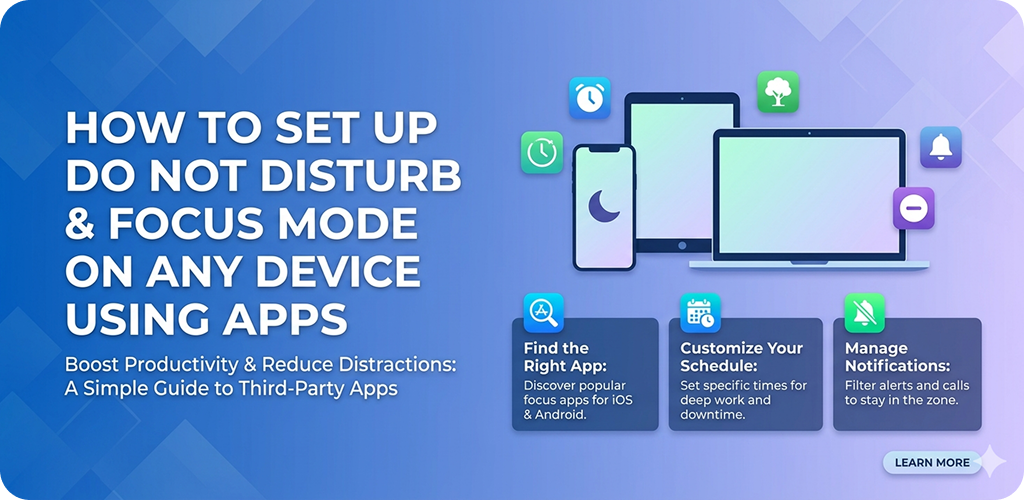
How to Set Up We live in a world where notifications never really stop. Your phone buzzes during a meeting. An app sends you a “reminder” at 11 PM. Someone tags you in a meme while you’re trying to finish a report. Sound familiar? Most people deal with this daily, and honestly it messes with your concentration more than you’d think.
The good news is — almost every modern device already has tools built in to help with this. Do Not Disturb (DND) and Focus Mode aren’t new features, but a lot of people either don’t know they exist or haven’t set them up properly. This guide walks through both, step by step, for Android, iOS, and even some third-party apps you can use if your device is older or lacks these options natively.
How to Set Up What Do Not Disturb Actually Does (And What It Doesn’t)
A lot of people think DND just silences their phone. That’s partially true, but it’s actually more nuanced than that.
Do Not Disturb blocks notifications from appearing on your screen or making noise — but you can configure which notifications still get through. For example, you might want calls from your family to still ring, even when everything else is silenced. That’s the kind of control DND gives you.
What it doesn’t do is stop apps from running in the background or restrict your own access to them. If you open Instagram yourself, DND won’t stop you. That’s where Focus Mode comes in — but more on that below.
How to Set Up Setting Up Do Not Disturb on Android
Android phones vary a bit depending on the brand — Samsung, Pixel, OnePlus — but the general path is similar across all of them.
Step 1: Open Your Settings
Go to Settings > Sound & Vibration > Do Not Disturb. On some Samsung devices it might be under Notifications > Do Not Disturb. Either way, it’s usually within a couple of taps.
Step 2: Turn It On and Configure It
Once inside, you’ll see a toggle to enable DND immediately. Below that, there are options to customize the behavior.
- People – Choose who can still call or message you. Most people allow “Starred contacts” or “Calls from anyone” in case of emergencies.
- Apps – You can whitelist certain apps so their alerts still come through. Useful for things like Google Maps if you’re navigating.
- Alarms & Media – You can decide whether alarms still ring (they usually should, especially for morning alarms).
Step 3: Schedule It Automatically
This is the part most people skip, and it’s actually the most useful. You can schedule DND to activate on its own — say, every night from 10 PM to 7 AM, or during your regular work hours.
Tap Schedules and create a time-based rule. Once it’s set, you don’t have to think about it again.
How to Set Up Setting Up Do Not Disturb on iPhone (iOS)
Apple’s DND has gotten much more flexible over the years. On iOS 15 and above, it’s been folded into the broader Focus system, but you can still use it as a simple standalone mode.
Using the Control Center
Swipe down from the top-right corner of your iPhone. You’ll see a crescent moon icon. Tap it to enable DND instantly. Long-press it for options like “For 1 hour” or “Until tomorrow morning.”
Customizing Through Settings
For more control, go to Settings > Focus > Do Not Disturb.
Here you can set allowed contacts, allowed apps, and even choose what your Lock Screen shows while DND is active. Apple lets you decide if silenced notifications show up on the lock screen or stay completely hidden until you unlock your phone.
You can also link DND to your location — so it turns on automatically when you arrive at work, for example. That’s a genuinely handy feature if your schedule isn’t always at the same time each day.
How to Set Up What Is Focus Mode and How Is It Different?
If Do Not Disturb is about silencing the world, Focus Mode is about actively blocking distractions you create for yourself.
On Android (introduced in Digital Wellbeing), Focus Mode lets you pick specific apps — like social media, news, or games — and pause them completely. When they’re paused, you can’t open them. The icon is grayed out and tapping it just shows a message saying the app is paused.
It’s designed for situations where you know you’ll be tempted. Think of it like putting your phone in a drawer, but digitally.
How to Set Up Setting Up Focus Mode on Android
- Go to Settings > Digital Wellbeing & Parental Controls
- Tap Focus Mode
- Select the apps you want to pause
- Hit Turn On Now — or set a schedule
You can also add a Focus Mode tile to your Quick Settings panel (pull down from the top of your screen twice) so you can toggle it with one tap.
How to Set Up Focus Mode on iPhone
Apple’s version is called Focus, and it’s more layered. You can create multiple Focus profiles — Work, Personal, Sleep, Fitness — each with its own set of allowed apps and contacts.
Go to Settings > Focus and tap the + button to create a new one. You name it, choose the allowed people and apps, and optionally set a schedule or automation.
One cool detail: when your Focus is active, people who message you can see a small note saying you have notifications silenced. That way they know you’re not just ignoring them.
How to Set Up Third-Party Apps That Help With Focus and DND
Not every phone has robust built-in tools. And even if yours does, some apps go further. Here are a few worth knowing:
1. Freedom
Freedom is available on Android, iOS, and even desktop. You can schedule “sessions” where specific websites and apps are blocked. It syncs across devices too, which is great if you work on both a phone and laptop.
2. Forest
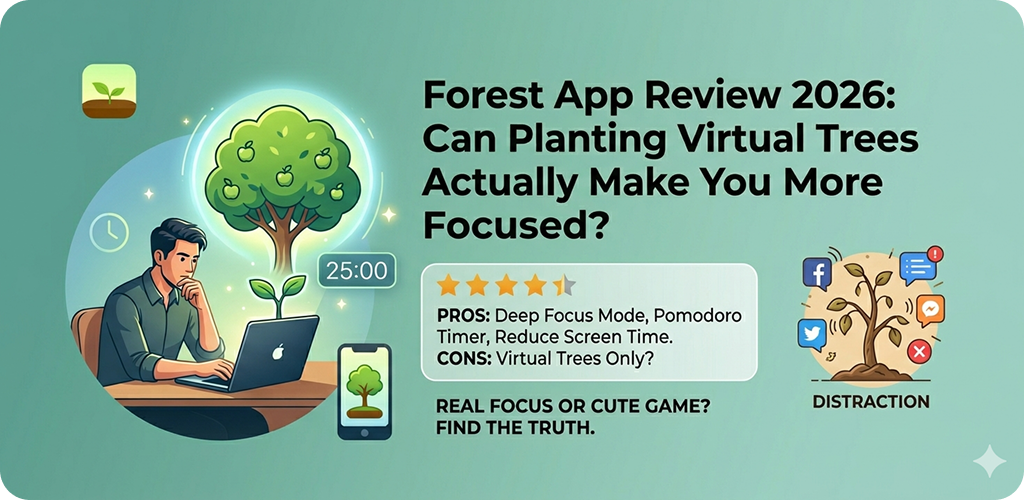
Forest takes a more motivational approach. You plant a virtual tree when you want to focus, and it grows as long as you don’t touch your phone. If you exit the app early, the tree dies. It sounds simple but it actually works — the visual element creates a small but real sense of commitment.
3. ActionDash (Android)
ActionDash sits on top of Android’s Digital Wellbeing and gives you much more detailed stats and controls. If you want granular data on which apps are eating your time, this is a solid free option.
For a deeper look at managing screen time through built-in phone tools, check out how Android’s Digital Wellbeing compares across different devices — it explains what’s available depending on your Android version.
Tips for Making These Features Actually Work
Setting up DND or Focus Mode is the easy part. The harder part is building habits around them. A few things that genuinely help:
Start with sleep. The easiest win is scheduling DND for your sleep hours. Most people don’t need work emails at 2 AM. Set it once and forget it.
Don’t make the allowed list too long. If you allow 15 apps to bypass Focus Mode, it defeats the purpose. Be a bit strict with yourself at first.
Use it during specific tasks, not all day. Focus Mode works best when it’s tied to something — writing a report, studying for an exam, doing creative work. Running it 24/7 tends to make people anxious about missing things.
Tell people around you. If coworkers or family know you go into Focus Mode between 2–4 PM, they’ll learn to not expect instant replies during that window. That social expectation matters more than people realize.
For Android users who want to explore more about notification control and app permissions as a whole, this Android notification management guide covers the full range of options available in recent OS versions.
When DND and Focus Mode Aren’t Enough
Sometimes the problem isn’t just notifications — it’s the apps themselves and how they’re designed to keep pulling you back. In those cases, a few additional steps help:
- Turn off badge counters (those little red numbers on app icons)
- Move social apps off your home screen to a secondary folder
- Use grayscale mode — it makes your phone screen less visually appealing and surprisingly effective at reducing compulsive checking
These small friction points add up. The goal isn’t to make your phone useless, just slightly less irresistible.
If you’re also looking at managing focus on a laptop or PC, browser extensions like StayFocusd or Cold Turkey work in a similar way to Focus Mode but for websites.
Final Conclusion
Do Not Disturb and Focus Mode are genuinely useful features — and they’re already sitting on your phone right now, mostly unused. The difference between someone who’s constantly distracted and someone who gets things done often comes down to these small setup decisions.
DND handles the incoming noise — calls, messages, app alerts — while Focus Mode handles your own impulses to open distracting apps. Together they create a kind of digital quiet that most people don’t realize is possible.
Start small. Set DND for nighttime. Try Focus Mode for one hour tomorrow during something important. See how it feels. Most people who actually try it don’t go back.
You don’t need willpower alone — you just need the right settings turned on.