Prakash@gmail.com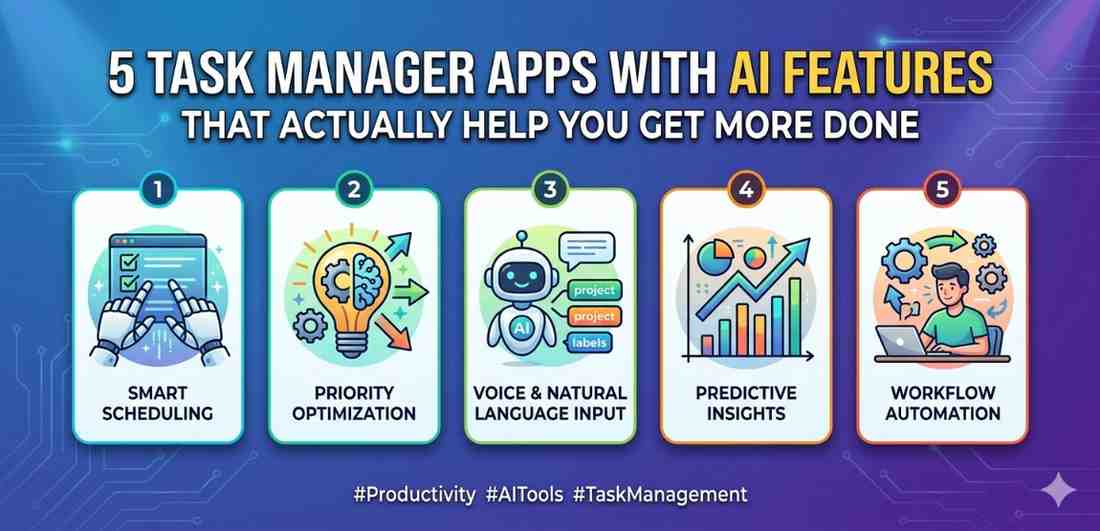
introduction
5 Task Manager Most of us have tried a to-do app at some point. Downloaded it, added a few tasks, felt productive for about three days, then quietly forgot it existed. Sound familiar?
The reason most task managers fail isn’t the app itself — it’s that they put all the work on you. You have to organize, prioritize, schedule, follow up. That’s exhausting on top of an already busy day.
AI-powered task managers are genuinely different. Not in a gimmicky way, but in small, practical ways that actually reduce the mental load. And if you’re using an Android phone — which most people reading this probably are — these apps work surprisingly well even on mid-range devices.
Let’s look at five of them that are actually worth your time.
Why AI in A 5 Task Manager Is More Useful Than It Sounds
Before jumping into the list, it helps to understand what “AI features” even means here. In task managers, AI usually does a few specific things: it suggests when to do a task based on your habits, auto-categorizes new items, helps you break big goals into smaller steps, or learns your schedule over time and reschedules things when you fall behind.
None of this is magic. But it removes friction. And that matters a lot when you’re already mentally stretched.
1. 5 Task Manager Todoist With AI Assistant
Todoist has been around for years, but their AI integration — especially from late 2023 onward — changed how the app actually feels to use.
What the AI Does Here
When you type something like “finish the client report before Friday afternoon,” Todoist’s AI parses that naturally. It doesn’t make you tap a calendar or set a time manually. It just understands context.
The smarter part is the AI Assistant feature (available in the Pro plan). You can ask it to break a project into tasks. For example, type “Plan a product launch” and it’ll generate a structured checklist — things like draft announcement, prepare social posts, set up landing page. You can remove or edit anything, but it gives you a real starting point instead of a blank screen.
On Android, the interface is clean and the widget works well on the home screen. Notifications are reliable, which sounds basic but isn’t always true with Android’s battery optimization getting in the way.
2. 5 Task Manager TickTick With Smart Scheduling
TickTick is probably the most feature-complete task manager on this list, and it has one AI feature that genuinely stands out: Smart Schedule.
5 Task Manager How Smart Schedule Actually Works
When you have a bunch of overdue or unscheduled tasks piling up, Smart Schedule looks at your calendar availability and your existing commitments, then suggests time blocks for each task. You review the suggestions and accept or change them. It takes maybe two minutes.
This is useful in a very real way. Say you have seven tasks sitting in “today” and it’s already 4 PM. Instead of panicking or ignoring them, Smart Schedule redistributes them across the next few days based on priority and the time each task might take.
TickTick also has a built-in calendar, habit tracker, Pomodoro timer, and focus stats. It’s a lot in one app, and some people find it overwhelming at first. But if you use it regularly, the AI scheduling starts to feel like having a very calm, organized assistant quietly handling the boring parts.
It works well on Android and syncs quickly across devices.
3. Motion — The AI Scheduler That Rebuilds Your Day
Motion is different from the others. It’s not really a traditional task manager — it’s closer to an AI calendar that also handles tasks.
5 Task Manager The Core Idea Behind Motion
You add tasks, meetings, and deadlines. Motion then builds your schedule automatically, every single day. If something runs over or a meeting gets added last minute, it reschedules everything else in real time. You don’t move things around manually — it does that.
This sounds great in theory, and for most people who stick with it, it genuinely is. The learning curve is a bit steep, and it takes a week or two before the AI “gets” your preferences. But once it does, the daily rebuilding becomes something you actually rely on.
Motion is subscription-based and not cheap. But if your problem is specifically that your calendar and task list never talk to each other, Motion solves that directly.
On Android, the app is functional though not as polished as iOS. Worth trying regardless.
4. Notion AI Inside a Task System
Notion isn’t built specifically as a task manager, but a lot of people — especially those who do content work, freelancing, or project coordination — use it as one. And the addition of Notion AI changed how useful it can be for getting things done.
5 Task Manager Where Notion AI Fits Into Task Management
Let’s say you have a project page with scattered notes, half-finished ideas, and a rough to-do list. Notion AI can read all of that and generate a clean action plan. It can summarize long notes into quick bullet points, rewrite unclear task descriptions, and even suggest next steps when you’re stuck.
It’s not automated scheduling like Motion or TickTick. It’s more about reducing the cognitive overhead of thinking through what to do next. That’s a different kind of help, but equally valid for a lot of people.
If you already use Notion for notes or work documentation, adding AI to your workflow there makes more sense than switching to a new app. The Android app has improved significantly and handles databases and tasks reasonably well on mobile. For those building a connected productivity system, understanding how Android apps sync data in the background can help you manage battery and connectivity settings better.
5. Reclaim.ai — For People Who Live in Google Calendar
Reclaim is less well-known than the others but genuinely impressive for a specific type of user: someone whose life runs through Google Calendar and who keeps failing to protect time for actual work.
5 Task Manager What Makes Reclaim Different
Reclaim integrates with Google Calendar and automatically finds time for your tasks, habits, and focus blocks — while working around your existing meetings. You tell it things like “I need 3 hours this week to work on the budget report” and it schedules that across your available slots, moving things if needed.
There’s also a habit scheduling feature. If you want to exercise for 30 minutes daily or have a daily writing block, Reclaim protects that time and moves it when conflicts arise. It’s not pushy about it — the logic is quiet but consistent.
For Android users who primarily work from a desktop or laptop, Reclaim’s mobile experience is more of a companion than a main interface. But the notifications and task reminders come through cleanly. If you’re curious about how apps like this interact with Android’s calendar system, it helps to understand Android’s sync and account settings to make sure everything stays connected properly.
Choosing the Right One for Your Situation
There’s no single best app here. It depends on your situation.
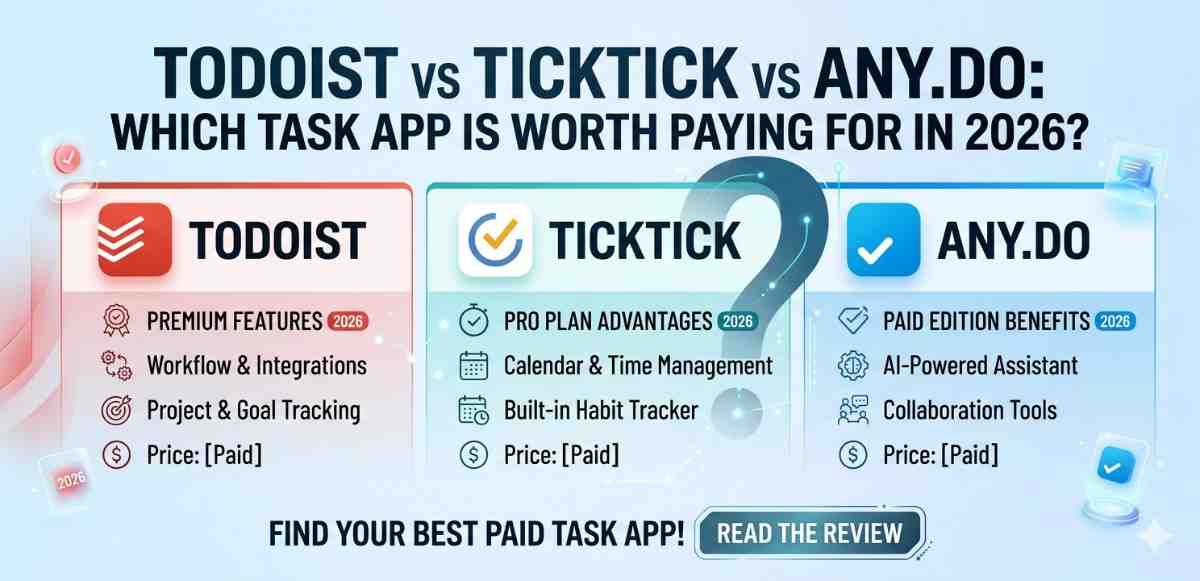
If you want something that handles simple task entry really well with some AI convenience, start with Todoist. If you need calendar and task integration handled automatically, try Motion or Reclaim. If you like building your own system, Notion AI gives you flexibility. TickTick is probably the best all-around option for Android users who want AI scheduling without leaving the task manager ecosystem.
Try one for two full weeks before deciding. One week is not enough to form any real habits.
For more context on how Android productivity apps behave under battery optimization, checking Google’s official Android battery settings guide is genuinely worth a few minutes of your time.
Final Conclusion
AI features in task managers have moved past the hype stage. Apps like TickTick, Motion, and Reclaim aren’t using AI as a buzzword — they’re using it to handle the parts of task management that drain you most: rescheduling, prioritizing, and figuring out when to actually do things.
None of them will work without effort on your part. You still have to add your tasks, build some basic structure, and actually open the app. But once you do that consistently, the AI pieces start filling in real gaps.
Pick one that fits how you already work. Don’t overcomplicate it. The best task manager is the one you’ll actually use tomorrow.