Prakash@gmail.com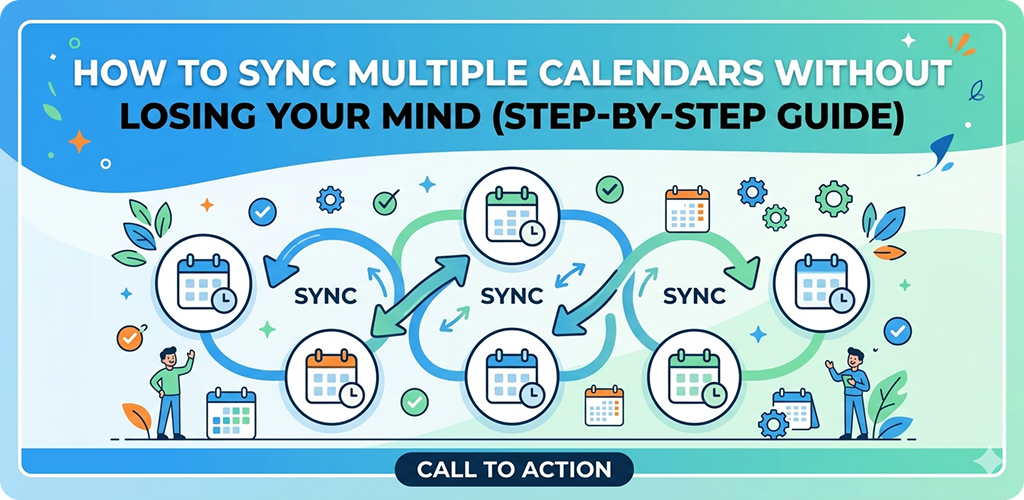
Managing five different calendars at once sounds like a nightmare, right? Work meetings in Google Calendar, personal appointments in Samsung Calendar, family events shared by your spouse, a college schedule somewhere else — and somehow you’re expected to keep track of all of it without double-booking yourself or missing anything important.
I’ve been there. And honestly, it took me a while to figure out a system that actually works. This guide is based on real experience, not just theory pulled from documentation.
Why People End Up With Multiple Calendars in the First Place
Nobody plans to have a chaotic calendar setup. It sort of happens on its own.
Your job gives you an Outlook calendar. You personally prefer Google Calendar. Your kids’ school sends a shared iCal link. Your gym classes are on a separate app. Before you know it, you’re switching between four different apps just to check if Tuesday evening is free.
This is super common on Android phones especially, because Android is flexible — it connects to almost any calendar service out there. That’s great, but it also means things can get messy without any intentional setup.
Multiple Calendars Understanding How Calendar Sync Actually Works on Android
Before jumping into steps, it helps to understand what’s happening behind the scenes.
Android doesn’t have just one universal calendar storage. Instead, it uses accounts — Google, Microsoft, Samsung, etc. — and each account can carry its own calendars. When you add an account to your Android phone under Settings, the phone can pull in that account’s calendar data and display it alongside others.
Most calendar apps (Google Calendar, Samsung Calendar, Business Calendar, etc.) are basically viewers that read from these account sources. So the real syncing happens at the account level, not the app level.
This matters because if your calendar isn’t showing up, the fix is usually in your account sync settings, not inside the calendar app itself.
Step 1: Collect All Your Calendar Sources First
Don’t start syncing randomly. First, write down every calendar you actually use or need. Be specific.
- Work: Google Workspace or Outlook?
- Personal: Gmail account or Apple ID?
- Shared family calendar: Google Family or something else?
- Subscribed calendars: Holiday lists, sports schedules, school timetables?
Once you have this list, you’ll know exactly which accounts need to be added to your phone.
Step 2: Add Each Account to Your Android Device
On most Android phones (Samsung, Xiaomi, OnePlus, etc.), the process is roughly the same:
Go to: Settings → Accounts and Backup → Manage Accounts → Add Account
Choose the account type (Google, Microsoft Exchange, etc.) and sign in. After adding, make sure Calendar sync is turned ON for that account — some accounts default to syncing only email or contacts.
Multiple Calendars For Google Accounts Specifically
If you have two Google accounts (say, one personal and one work), you can add both. Just go back to “Add Account” and sign in with the second one. Android handles multiple Google accounts just fine.
After that, open Google Calendar. Tap the three-line menu on the top left, and scroll down — you’ll see calendars from both accounts listed there. You can toggle visibility for each one individually.
Multiple Calendars For Microsoft Outlook/Exchange Accounts
Adding an Exchange account is similar, but you might need server details if your company uses a private mail server. Check with your IT department if basic sign-in doesn’t work.
Once added, Microsoft calendar events will appear right inside Google Calendar (or whichever app you use as your main viewer) alongside your personal ones.
Step 3: Choose ONE Main Calendar App as Your Hub
This is the step most people skip, and it causes the most confusion later.
Instead of opening Samsung Calendar for work and Google Calendar for personal stuff, pick one app and make it your daily driver. Set it as your default calendar app in Settings → Apps → Default Apps.
Google Calendar is the most popular choice because it handles multiple accounts and subscribed calendars really well. But apps like Business Calendar 2 or Fantastical (if you’re cross-platform) work great too.
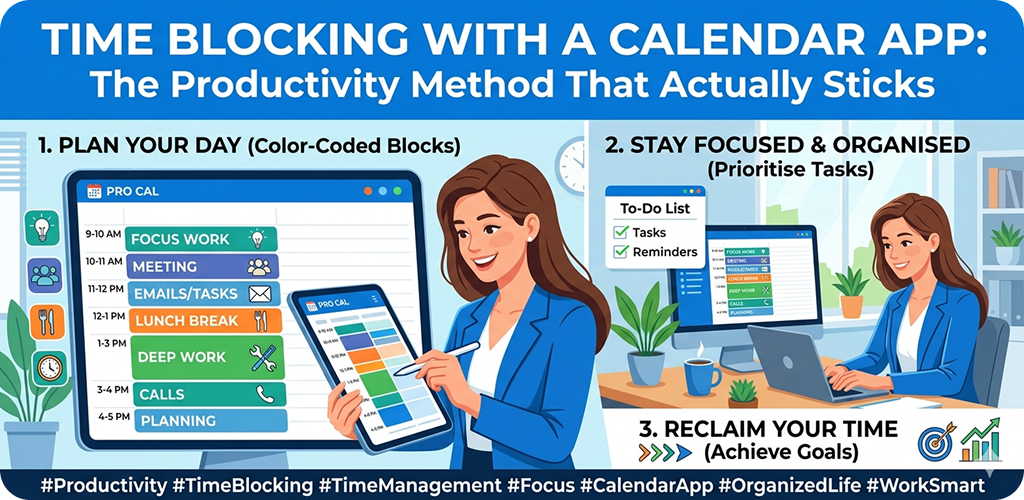
The goal is to see everything in one place — color-coded by calendar — so you never have to jump between apps.
Step 4: Use Color Coding to Keep Things Readable
Once all your calendars are visible in one app, color coding becomes essential.
In Google Calendar, you can assign a specific color to each calendar — not just each account. So your work meetings can be blue, personal appointments green, family events yellow, and gym sessions orange.
At a glance, you’ll know exactly what type of event you’re looking at without reading the title.
To change colors in Google Calendar: tap the menu → tap the three dots next to a calendar name → select a color.
Small thing, but it genuinely changes how quickly you can process your schedule.
Step 5: Handle Subscribed Calendars the Right Way
Subscribed calendars (like .ics links for school schedules or public holiday lists) work a bit differently — they’re read-only feeds that update automatically.
In Google Calendar on desktop: go to Other Calendars → Add by URL → paste the .ics link. It’ll sync to your phone automatically within a few hours.
You can’t always do this directly from the Android app, so the desktop route is usually easier for this specific task.
These subscribed calendars show up like any other calendar in your app, but you can’t edit individual events on them, which is expected behavior.
Step 6: Fix Sync Delays Before They Become a Problem
Sometimes calendar events don’t show up immediately, or updates take too long. This is usually a background sync issue.
A few things to check:
Battery optimization: Android aggressively kills background processes to save battery. Go to Settings → Battery → Battery Optimization, find your calendar app (and the Google account app), and set them to “Not Optimized” or “Unrestricted.”
Sync frequency: In your account settings, check how often calendar sync runs. Some accounts default to “manual,” which means it only updates when you open the app.
Data saver mode: If you have data saver turned on, background syncing might be blocked. Either whitelist calendar apps or turn off data saver on Wi-Fi.
These tweaks make a real difference, especially for work calendars where a delayed meeting notification can actually cause problems.
Step 7: Share Calendars With Family or Colleagues
Syncing is one side of the equation. Sharing is the other.
If you want your partner to see your schedule (or vice versa), Google Calendar lets you share specific calendars via email. They’ll get a link to add it to their own Google Calendar, and any changes you make will reflect on their end in real time.
For family setups, Google Family Group has a built-in family calendar that all members can see and edit. It’s not perfect, but it works well for basic coordination — school pickups, holiday plans, shared appointments.
For work teams, shared Outlook calendars are standard. Once your Exchange account is added to your phone, those shared work calendars should appear automatically.
If you’re curious about Android’s built-in account management tools in more depth, Google’s official support page on calendar sync covers the technical side clearly.
Multiple Calendars Common Mistakes to Avoid
Adding too many calendars: More isn’t better. If you’re subscribed to 12 different external calendars, your view becomes unusable. Keep only what you actually check.
Using the wrong default app: Android sometimes resets your default calendar app after an update. If events are opening in a different app than expected, recheck your defaults.
Forgetting to re-enable sync after factory reset or app reinstall: Accounts need to be re-added, and sync needs to be turned back on manually.
Ignoring notification settings per calendar: Some people want work calendar reminders off after 6 PM. You can set notification rules per calendar in Google Calendar settings — this is underused and genuinely helpful.
Conclusion
Managing multiple calendars doesn’t have to be chaotic. The key is treating it like a system — know your sources, add them properly as accounts on your phone, pick one app to view everything, use colors to distinguish them, and fix sync settings so things update reliably.
Most of the confusion people feel comes from not having a clear structure. Once you set it up properly, it honestly takes maybe five minutes of one-time effort, and then your calendar just works — across work, personal, family, and everything else Multiple Calendars.
Multiple Calendars If your current setup feels messy, start fresh. Remove duplicate accounts, re-add them cleanly, and follow the steps above. You’ll feel noticeably more organized within a day.