Prakash@gmail.com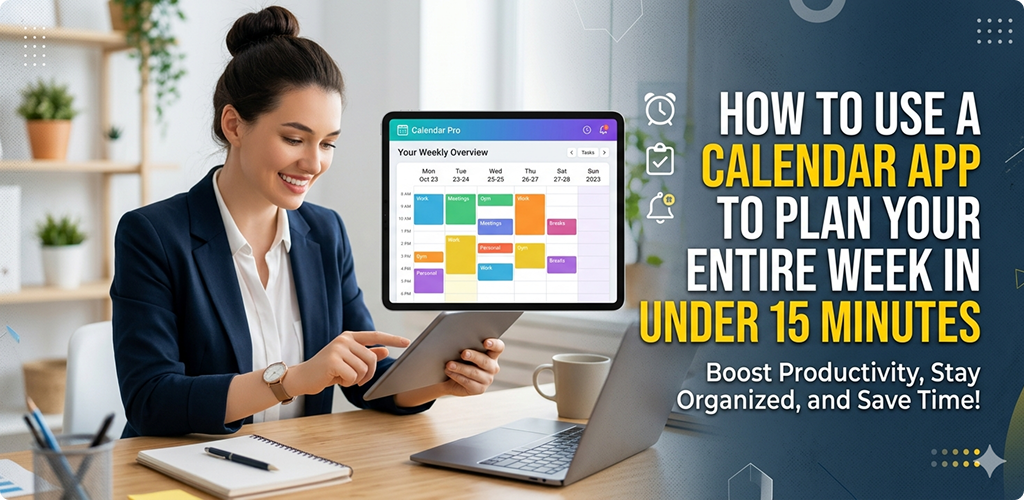
Introduction
a Calendar App Most people open their calendar app to check one appointment and close it two seconds later. That’s pretty much it. But if you’ve ever felt like your week is running you instead of the other way around, the problem might not be your schedule — it might be that nobody ever showed you how to actually use the tool sitting right on your phone.
Fifteen minutes. That’s genuinely all it takes to plan a full week if you know what you’re doing.
A Calendar App Why Most People Struggle With Weekly Planning
Here’s something interesting — people don’t fail at planning because they’re lazy or disorganized. They fail because they’re trying to plan in their head. Mental to-do lists evaporate. That meeting you were supposed to reschedule? Gone by Tuesday afternoon.
A calendar app gives your brain permission to let go of things. When you write something down (or type it in), your mind stops holding onto it as an emergency reminder. That mental freedom is actually the whole point.
The other issue is that people treat calendars like appointment trackers only. Doctor visit? Add it. Everything else? Figure it out as the week goes. That approach leaves too many gaps, and gaps get filled with distraction.
A Calendar App Picking the Right Calendar App for Your Android Phone
Picking the Right Calendar App for Your Android Phone
Before anything else — you need to be working with an app that doesn’t frustrate you. On Android, Google Calendar comes pre-installed on most phones and honestly, for the average person, it does the job extremely well. Samsung users also have Samsung Calendar built in, which syncs nicely with the rest of the Samsung ecosystem.
If you want something with a bit more structure, apps like Any.do or Fantastical offer cleaner weekly views. But don’t overthink this part. The best app is the one you’ll actually open.
For most beginners, Google Calendar is the recommendation here. It syncs across devices, connects with Gmail (so flight confirmations and events show up automatically), and the color-coding system is simple but powerful.
A Calendar App Setting Up Your Calendar Before You Start Planning
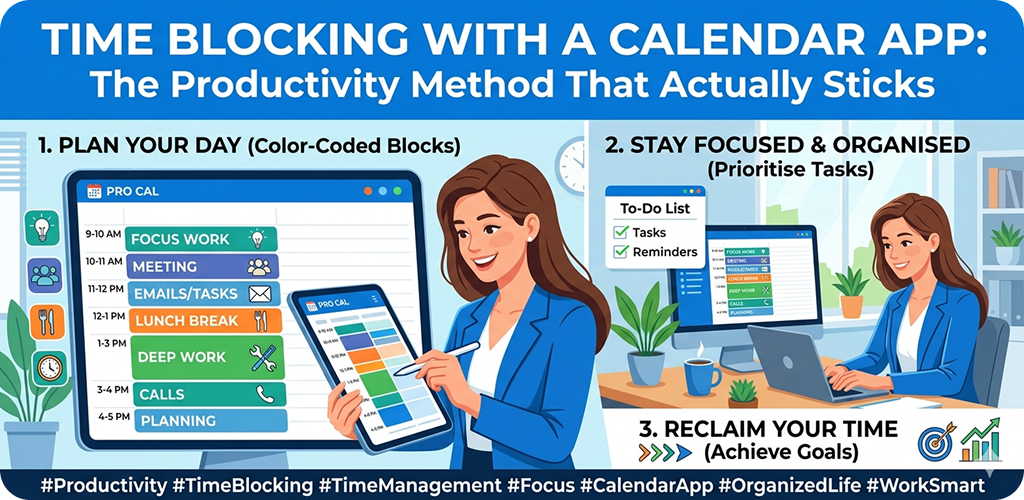
Create Separate Calendars for Different Life Areas
Google Calendar lets you create multiple calendars inside one account. So instead of everything dumped into one list, you can have:
- A Work calendar (shown in blue, say)
- A Personal calendar (green)
- A Health/Fitness calendar (red)
- A Family calendar (yellow)
When your week is color-coded like this, you can see at a glance whether your week is balanced or completely dominated by one area of life. If everything’s blue on Thursday, that’s a signal.
Turn On Notifications That Actually Help
Go into your calendar app settings and set default reminders. For work meetings, 10–15 minutes before is practical. For personal commitments like gym sessions or a friend’s birthday dinner, 1–2 hours notice gives you time to prepare mentally and physically.
Don’t set reminders for every single thing — that leads to notification fatigue, and you start ignoring them all.
A Calendar App The 15-Minute Weekly Planning Method (Step by Step)
This is the actual process. Do this once a week — Sunday evening or Monday morning works best for most people.
Step 1: Do a Quick Brain Dump (3 Minutes)
Open your notes app or grab a piece of paper. Write down everything on your mind — tasks, worries, appointments, things you’ve been meaning to do. Don’t filter. Just get it out.
This isn’t about organizing yet. It’s about clearing mental clutter so you can think straight.
Step 2: Check Last Week’s Leftovers (2 Minutes)
Open your calendar and scroll back to last week. Did anything not get done? Any tasks that kept getting pushed? If yes, decide right now — does it actually need to happen this week, or can it wait? Be honest. Some things on your list were never that important.
Move the real ones forward. Let the rest go.
Step 3: Block Your Non-Negotiables First (3 Minutes)
These are things that will happen regardless of how the rest of the week unfolds. Work hours, school pickup, a gym class you’ve already paid for, a dentist appointment. Get these into the calendar first because everything else has to fit around them.
On Google Calendar, tap any time slot and create the event. Assign it to the right calendar color. Done.
Step 4: Schedule Your Top 3 Priorities for the Week (4 Minutes)
What are the three things that, if you get them done this week, will make the week feel successful? Not tasks from someone else’s list — yours. Maybe it’s finishing a work report, calling your parents, or starting that online course.
Give each one a specific time slot. Not “sometime Thursday” — block Thursday 7:00 PM to 8:30 PM. Specific time blocks are the difference between intentions and actions.
This is also where a lot of people get it wrong — they add tasks to a to-do list but never give them a time. Tasks without time slots are just wishes.
Step 5: Add Buffer Time Between Heavy Tasks (2 Minutes)
Back-to-back meetings or tasks sound efficient. They really aren’t. You arrive at each one slightly frazzled from the last. Even a 15-minute buffer block between two demanding activities makes a noticeable difference.
Add these as “Focus/Break” blocks or just leave those slots empty in your calendar. The point is to protect them intentionally.
Step 6: Review the Full Week View (1 Minute)
Switch to the weekly view in your app. Does it look realistic? Does Wednesday have six hours of deep work scheduled when you know you’ve got low energy that day? Adjust.
The goal isn’t a perfect, packed schedule. It’s a realistic one you’ll actually follow.
Tips That Make This Habit Stick
Use Recurring Events for Routine Tasks
If you exercise every Tuesday and Thursday morning, set that as a recurring event. If you batch your emails every weekday at 9 AM, same thing. Recurring blocks stop you from re-scheduling the same routine every single week.
Keep a “Someday” Calendar
Create one extra calendar labeled “Someday” or “Backlog.” When something comes up during the week that you can’t address now, toss it there instead of forgetting it or stressing about it. Review it during your next Sunday planning session.
Sync Your Calendar With Your Partner or Family
Google Calendar lets you share specific calendars with other people. If you’re managing a household, this is genuinely useful. Your partner can see when you have an important meeting, and you can see when they’ve booked the car for a school run. Less confusion, fewer last-minute clashes.
You might also find it helpful to explore how Android’s built-in Google apps work together to save time — Calendar, Tasks, and Keep Notes all integrate in ways most people never use.
Common Mistakes to Avoid
Over-scheduling is the most common trap. People get enthusiastic on Sunday and fill every hour. By Wednesday, they’ve missed half of it and feel worse than before they started.
Leave at least 20–30% of your week unscheduled. That time will get used — it always does — but on your terms.
Another mistake is treating the plan as fixed. Life changes. A calendar plan is a guide, not a contract. If something shifts on Wednesday, update the calendar. Don’t just abandon the plan entirely because one thing moved.
Final Conclusion
Planning your week with a calendar app isn’t about being obsessively organized or squeezing every minute dry. It’s really about making intentional choices before the week makes them for you.
The 15-minute method works because it’s low-friction and realistic. You’re not building a complex productivity system — you’re just giving your priorities a time and place to exist. When you do that consistently, the week feels less chaotic. You start finishing what matters. And that feeling compounds over time.
Start this Sunday. Open your calendar app, spend 15 minutes, and see what changes.