Prakash@gmail.com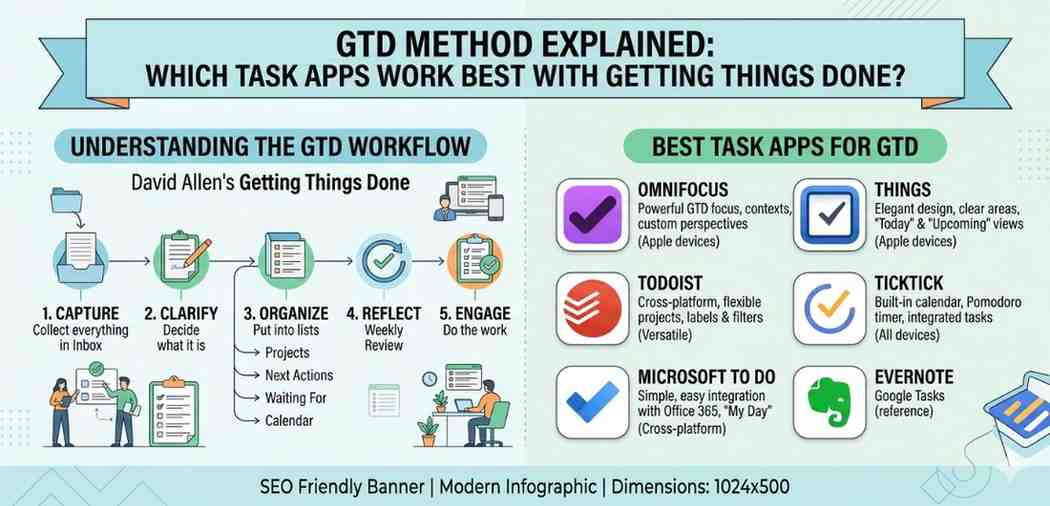
GTD Method Explained If you’ve ever opened your eyes on a Monday morning with a mental list so long it gave you a small headache before you even got out of bed — you’re not alone. Most people operate this way. They carry everything in their head, forget half of it, and still somehow feel overwhelmed by the other half. That’s exactly the problem David Allen tried to solve when he wrote Getting Things Done back in 2001.
The GTD method isn’t some new productivity trend. It’s a system. And once you actually understand how it works — not just the name — you start seeing why so many people swear by it.
What GTD Method Explained Actually Means (Beyond the Buzzword)
GTD stands for Getting Things Done, but that description is a little too simple. At its core, GTD is about getting things out of your head and into a trusted system. The idea is that your brain is for thinking, not storing.
When you try to remember everything — the dentist appointment, the email you forgot to reply to, the grocery list, the work deadline — your brain is running background processes constantly. It’s exhausting. GTD says: stop doing that. Write everything down. Organize it. Then only focus on what actually needs your attention right now.
There are five core steps to the GTD method:
1. Capture
Write down everything that’s on your mind. Everything. Not just work tasks — personal errands, ideas, worries, anything. Don’t filter it yet.
2. Clarify
Go through each item and ask: what is this? Is it actionable? If yes, what’s the very next step? If not, delete it, archive it, or put it in a “someday” list.
3. Organize
Sort things into categories. By project, by context (like @phone, @computer, @errands), by priority. GTD Method Explained is big on context — doing tasks when you’re already in the right place or mode.
4. Reflect
Review your system regularly. Most GTD Method Explained users do a weekly review. This is where you catch things that slipped through, update projects, and make sure nothing important is buried.
5. Engage
Actually do the work. With a clean system, this part becomes much easier because you’re not wasting mental energy deciding what to do next.
Why Most People Give Up on GTD Method Explained (And What They’re Missing)
Here’s the honest truth: GTD feels complicated at first. You read about it, get excited, set up lists, and then two weeks later you’ve abandoned it. This happens to a lot of people.
The problem usually isn’t the method. It’s the setup. GTD requires a system that fits your life. Not a rigid template from someone else’s blog.
Also, people expect GTD to be instant. It’s not. The weekly review alone takes time to build as a habit. But when it clicks — and it does click eventually — the mental clarity is pretty remarkable. Things stop falling through the cracks.
Which Task Apps Actually Work Well With GTD Method Explained?
This is where it gets interesting. The GTD method is tool-agnostic — David Allen himself has used paper notebooks for years. But if you’re on Android and want a digital system, the right app makes a huge difference. Here are some that genuinely work well with GTD principles.
Todoist
Todoist is probably the most popular GTD-compatible app out there right now. It supports projects, sub-tasks, labels, filters, and priorities — all things GTD Method Explained needs.
The label system is great for GTD contexts. You can create labels like @home, @work, @waiting, and then filter your task list by context. The “Filters” feature lets you build custom views — like showing every task due today that’s tagged @computer. That’s very GTD.
The weekly review is something you’d have to build manually, but it’s doable. You can create a recurring reminder and a specific project for review items.
One downside: the free version is limited, and some GTD-heavy features like filters and labels are behind the Pro plan.
TickTick
TickTick is a strong contender, especially for people who want built-in features like a Pomodoro timer and habit tracker alongside their task list.
It supports tags (which work like GTD contexts), multiple lists (projects), and smart filters. There’s also a built-in calendar view, which helps when you’re doing your weekly review and want to see what’s coming up.
For Android users specifically, the widget support is solid. You can have your “Today” list on your home screen without opening the app. Small thing, but it keeps the system visible.
You can read more about how to organize tasks by context on Android to see how TickTick handles this in practice.
Notion
Notion isn’t a task app in the traditional sense — it’s more of an all-in-one workspace. But a lot of GTD users love it because you can build your system exactly the way you want.
You can create a database for your tasks, add properties like project, context, energy level, deadline, and status. Then create filtered views for each context or project stage.
The downside is the setup time. Building a GTD system in Notion from scratch takes effort. And on Android, the mobile app has historically been a bit slower than the desktop version, though it has improved.
If you like complete control over your setup, Notion is worth the learning curve. But if you want something ready out of the box, it might not be the right starting point.
OmniFocus (with a note for Android users)
OmniFocus is arguably the most GTD-complete app ever built. It was designed almost specifically for GTD users, with features like contexts (now called “tags”), perspectives, defer dates, and a full review mode.
The catch? It’s Apple only. Android users can’t use it natively.
Still worth mentioning because if you ever switch ecosystems, or if you use a Mac or iPad alongside Android, OmniFocus is in a different league for GTD power users.
Microsoft To Do
Surprisingly underrated for GTD beginners. It’s free, simple, and syncs across Android, Windows, and the web without friction.
You can create multiple lists (one per project), use “My Day” as your daily focus view, and flag tasks for extra attention. It doesn’t have labels or filters in the GTD sense, but for someone just starting with GTD, the simplicity actually helps.
The “Planned” view shows all tasks with due dates, which is useful during weekly reviews. If you’re already in the Microsoft ecosystem — using Outlook or Teams for work — the integration is a genuine time-saver.
For a broader look at how to build a simple GTD system as a beginner, Todoist’s blog has some practical walkthroughs worth reading.
Setting Up GTD on Android: Practical Tips
Whatever app you pick, a few things will make your GTD setup actually stick on Android.
Use your phone’s notification system wisely. GTD doesn’t mean constant reminders. Set reminders only for time-sensitive tasks. Everything else lives in your lists — you review those deliberately, not reactively.
Create a “Inbox” list first. Before you sort anything, capture it all in one place. Most GTD-compatible apps have an inbox feature. Use it religiously. Then process it during your review sessions.
Keep contexts realistic. Don’t create 15 context labels if you only work in two or three places. @home, @work, @phone, and @errands covers most people’s lives. The simpler the system, the more likely you’ll use it.
Do a weekly review — actually. Pick a day. Sunday evening or Friday afternoon works for most people. Set a recurring reminder. Go through every list, check what’s done, clarify what’s next, and clean up anything outdated. This one habit is honestly what separates people who stick with GTD from those who don’t.
Final Conclusion
The GTD method isn’t magic, and it’s not complicated once you break it down to its five core steps: capture, clarify, organize, reflect, and engage. What makes it work is consistency — especially the weekly review — and having an app that supports the system without fighting against it.
For most Android users, Todoist or TickTick are the easiest starting points. Notion suits people who want full customization. Microsoft To Do is genuinely solid for beginners. The best app is simply the one you’ll actually use every day.
Start small. Build one habit at a time. The mental clarity that comes from a working GTD system is worth the initial effort of setting it up properly.