Prakash@gmail.com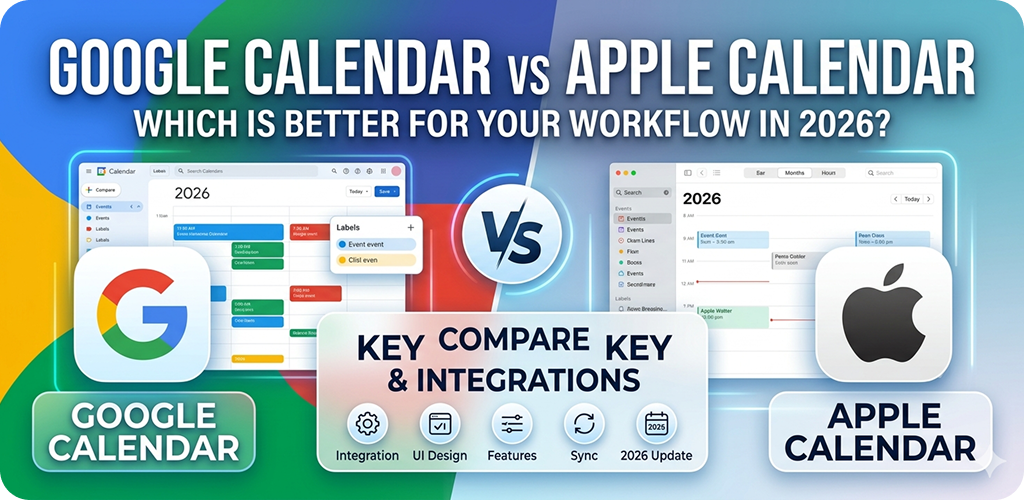
Introduction
If you’ve ever switched phones — say, from an iPhone to an Android or the other way around — one of the first things you probably had to figure out was which calendar app to stick with. It sounds like a small decision, but honestly, your calendar is something you interact with almost every single day. Getting that choice wrong can quietly slow you down.
So in 2026, with both Google Calendar and Apple Calendar having gone through several meaningful updates, which one actually fits better into a real working life? Let me break this down properly.
What Each App Is Actually Built For
Before comparing features, it’s worth understanding the philosophy behind each app — because they’re not really trying to solve the same problem.
Google Calendar was built with scheduling and collaboration at its core. It assumes you’re juggling meetings, shared events, multiple accounts, and probably some work-related integrations. It’s designed for people who live in the Google ecosystem — Gmail, Google Meet, Google Tasks, Drive, and so on.
Apple Calendar (sometimes called iCal, though Apple dropped that name officially) was built to be clean, minimal, and tightly woven into the Apple device experience. It’s less about power features and more about just… working without friction across your iPhone, iPad, Mac, and Apple Watch.
Neither approach is wrong. They’re just different.
Interface and Day-to-Day Usability
Google Calendar’s Layout
Google Calendar has a lot going on visually, but once you spend a few days with it, the layout starts to make sense. The color-coded calendars, the multiple view modes (day, week, month, schedule), and the quick-event creation at the top are genuinely useful.
The “Schedule” view is something I personally rely on a lot. Instead of looking at an empty grid, it just shows you a running list of upcoming events — simple, readable, and kind of underrated.
Apple Calendar’s Cleaner Feel
Apple Calendar leans into simplicity. The UI is quite minimal, and if you’re someone who doesn’t need a dozen features visible at once, this honestly feels better to use. The month view in particular is very clean.
That said, Apple Calendar can feel a bit sparse when you need to do something slightly complex, like managing multiple external calendars or filtering events by type. It’s capable, but it makes you work a little harder to find those settings.
Cross-Platform Access: A Big Deciding Factor
This is honestly where the decision gets made for most people.
Google Calendar works on everything. Android, iPhone, browser, tablet — it doesn’t care what device you’re on. If you’re someone who uses a Windows PC at work and an Android phone personally, Google Calendar is just the more practical choice. You can also access it from any browser without installing anything.
Apple Calendar, on the other hand, is built for Apple-only environments. Yes, there’s an iCloud web version you can access from a browser, but it’s not nearly as smooth or full-featured as what you get on an actual Apple device. If you ever step outside the Apple ecosystem even occasionally, this becomes a real limitation.
For Android users specifically, Apple Calendar isn’t really an option anyway — there’s no official Android app. Google Calendar, though, comes pre-installed on most Android phones and syncs automatically.
Integration With Other Apps and Services
Google Calendar Wins Here — Mostly
Google Calendar connects with a huge range of third-party tools. Zoom, Slack, Microsoft Teams, Notion, Trello — the list goes on. If you’re using any productivity tools for work, there’s a good chance Google Calendar already has an integration or can be connected through Zapier or similar services.
Gmail integration is especially useful. When you get an email with flight details, a hotel booking, or an event invitation, Google automatically pulls that into your calendar. You don’t have to do anything. It just shows up.
Apple’s Ecosystem Integration
Apple Calendar integrates beautifully within Apple’s own apps. Siri can add events just by you saying something out loud. It syncs with Apple Reminders, Apple Mail (for event detection), and works really well with Apple Watch for quick glances and notifications.
If your entire life runs through Apple devices and Apple’s own apps, this seamless integration is genuinely excellent. But once you bring in non-Apple services, things get a bit more patchy.
Sharing and Collaboration Features
Working With Teams
For anyone working in a team environment, Google Calendar is significantly more capable. You can share your full calendar with colleagues, set visibility permissions, see when others are free or busy, and schedule meetings directly around that availability.
Google’s “Meet with…” feature lets you find overlapping free time across multiple people’s calendars — really useful for coordinating across time zones or busy schedules.
Apple Calendar’s Sharing
Apple Calendar does allow calendar sharing, and it works fine for personal use — like sharing a family calendar. But for work-level collaboration, especially with people outside the Apple ecosystem, it gets awkward. Shared Apple calendars work best when everyone is on iCloud, which isn’t always realistic.
Notifications and Smart Features
Google’s Smarter Suggestions
Google Calendar has gotten more intelligent over the years. It can suggest good meeting times, flag potential conflicts, and even remind you to leave early for an appointment based on current traffic — if you have Google Maps on your phone.
The “Goals” feature, where you set a recurring goal (like “exercise 3 times a week”) and Google finds time for it automatically, is genuinely useful and something Apple Calendar doesn’t replicate.
Apple’s Focus Mode Tie-In
One area where Apple Calendar does something unique is its integration with Focus Modes on iOS. If you’re in “Work” Focus, your calendar can automatically filter to show only work events. This is a subtle but really practical feature that helps reduce mental clutter during focused work hours.
Privacy Considerations
This is something people don’t always think about, but it’s worth mentioning.
Apple has been very vocal about its privacy stance. Apple Calendar processes most things on-device, and Apple doesn’t use your calendar data to serve you ads or personalize content. For users who are sensitive about data privacy, this matters.
Google Calendar’s data does feed into Google’s broader ecosystem. That’s how Google can offer smart features like auto-importing events from Gmail. You’re trading some data privacy for those conveniences. Whether that’s a fair trade is a personal call.
If you want a deeper look at how Android handles app permissions and data, understanding Android app permissions is a good starting point.
Which One Should You Actually Use?
Here’s an honest summary:
Go with Google Calendar if:
- You use Android
- You work with a team or external collaborators
- You use multiple Google services (Gmail, Drive, Meet)
- You switch between devices or operating systems
- You want smart scheduling features
Go with Apple Calendar if:
- You exclusively use Apple devices
- You want a clean, minimal interface
- Privacy is a top priority for you
- You prefer native OS integration over feature depth
For most people in 2026, especially those on Android or in mixed-device environments, Google Calendar is simply the more practical tool. It works everywhere, connects with more things, and its smart features have genuinely matured.
But if you’re someone who lives inside the Apple ecosystem and values simplicity over power, Apple Calendar does its job really well — just not beyond Apple’s walls.
Final Conclusion
Both Google Calendar and Apple Calendar are solid tools, but they serve different types of users. Google Calendar shines for flexibility, collaboration, and cross-platform access — making it the stronger choice for most workflows in 2026. Apple Calendar is elegant and private, but it’s best enjoyed entirely within the Apple world. Rather than asking which is universally “better,” the smarter question is which one fits your devices, habits, and work style. Most of the time, that answer becomes obvious pretty quickly once you know what each app is actually built to do.