Prakash@gmail.com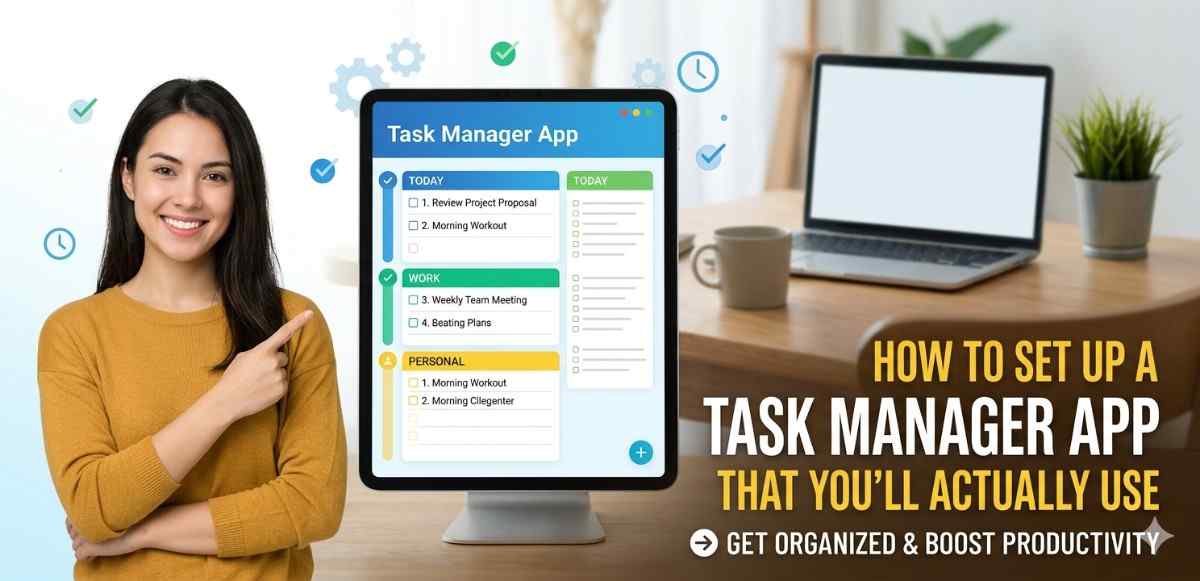
Most people download a task manager app with good intentions. They spend an hour setting it up, add a few tasks, and then — nothing. Three days later, they forget the app even exists. Sound familiar?
I’ve been there too. And after years of experimenting with different productivity setups on Android, I’ve figured out that the problem usually isn’t the app itself. It’s how people set it up in the first place.
This article is going to walk you through the right way to configure a task manager app so it actually becomes part of your daily routine — not just another icon collecting dust in your app drawer.
Why Most Task Manager App Setups Fail Before They Start
Here’s the thing — people overcomplicate it. They create dozens of categories, color codes for every project, and priority labels that have priority labels. By day two, maintaining the system feels like a second job.
A good task manager should reduce your mental load, not add to it. If you’re spending more time organizing tasks than actually doing them, something’s wrong with your setup.
The goal is simplicity that’s sustainable. And that starts with choosing the right app for the right reasons.
Choosing the Right App for Your Actual Lifestyle
Before you even open an app, think about how you work. Are you managing tasks for one person (yourself), or do you collaborate with others? Do you want reminders, or do you prefer just checking a list manually?
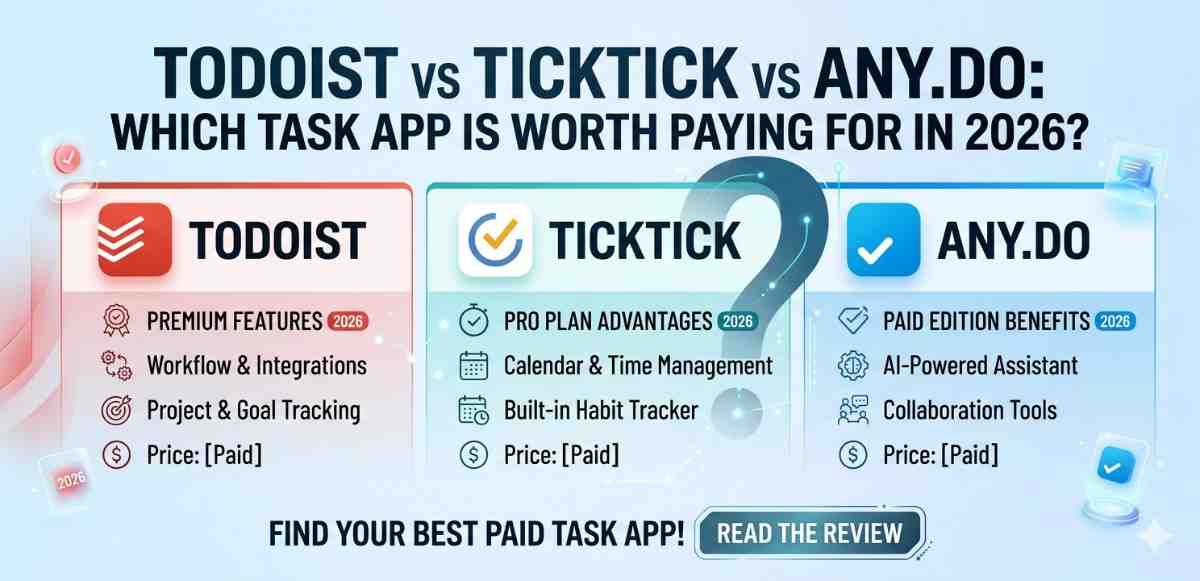
On Android, there are solid options like Google Tasks, Microsoft To Do, Todoist, and TickTick. Each one has a different personality, honestly.
- Google Tasks is minimal and syncs perfectly with Gmail and Google Calendar. Great if you’re already in the Google ecosystem.
- Microsoft To Do has a nice “My Day” feature that helps you plan just today — not the next six months.
- TickTick gives you habit tracking, a built-in calendar view, and a Pomodoro timer if you’re into that.
- Todoist is somewhere in between — powerful but not overwhelming.
For most beginners, I’d actually recommend starting with Microsoft To Do or Google Tasks. Less to configure means faster habit building.
Task Manager App Setting Up Your First Workspace the Right Way
Once you’ve picked your app, resist the urge to go wild on folders and lists. Start with just three categories:
- Today — Things that need to happen before tonight
- This Week — Tasks you’re planning for the next few days
- Someday — Ideas or tasks without a hard deadline
That’s it. Three lists. Most productivity experts suggest starting here before expanding anything, and after using different setups for years, I fully agree. You can always add more later, but starting simple builds the habit first.
On apps like Microsoft To Do, there’s already a built-in “My Day” section that functions exactly like a “Today” list. Use it. It was designed for this purpose.
Task Manager App How to Write Tasks So You Actually Do Them
This part gets overlooked, but it makes a massive difference. The way you write a task determines whether your brain processes it as actionable or vague.
Compare these two:
- ❌ Gym
- ✅ Go to the gym at 7 AM — chest and shoulders workout
The second one tells you exactly what to do and when. Your brain doesn’t have to interpret it — it just executes.
Start every task with a verb. “Call the doctor.” “Reply to Ravi’s email.” “Buy vegetables before 6 PM.” Small change, big impact on actually following through.
Also — keep tasks small. If a task takes more than an hour, break it into subtasks. On TickTick and Todoist, you can add subtasks under any main task, which is genuinely helpful for bigger projects.
Using Reminders Without Getting Reminder Fatigue
On Android, task apps can send you reminders as notifications. But if you set reminders for everything, you’ll start ignoring all of them — and that defeats the whole purpose.
Here’s a practical rule: Only set reminders for tasks where timing actually matters. Paying a bill, calling someone at a specific time, submitting a form before a deadline — those need reminders. “Read that article” probably doesn’t.
For time-sensitive tasks, use the combination of a reminder notification and a widget on your home screen. Most Android task apps offer a home screen widget where you can see your task list at a glance without opening the app. This passive visibility is underrated — just seeing the list when you unlock your phone keeps things top of mind.
On Android, long-press your home screen, tap “Widgets,” and look for your task app. Google Tasks and Microsoft To Do both have clean widgets worth using.
If you’re also syncing tasks across devices, it’s worth knowing how Android handles background app sync and notifications — keeping sync enabled ensures your reminders fire at the right time even when you switch devices.
Task Manager App Building the Daily Review Habit
This is probably the single most important habit and also the one most people skip entirely.
Every morning — ideally right after you wake up or after your first coffee — spend five minutes looking at your task list. Not to add a hundred new things, just to review what’s already there. Move tasks from “This Week” to “Today” if they need to happen. Delete tasks that are no longer relevant. Adjust deadlines that have shifted.
This daily review is what keeps your system alive. Without it, your task list becomes a digital graveyard of things you meant to do last month.
Five minutes. Every morning. That’s the whole practice.
At night, spend two minutes doing a quick end-of-day check. Mark what you finished, note what’s carrying over to tomorrow. This closing ritual helps your brain feel like the day actually ended — a weirdly underrated benefit.
Integrating Your Task App With the Rest of Your Android Life
A task manager works best when it doesn’t live in isolation. If you use Google Calendar, link it with Google Tasks. You’ll see your tasks appear on your calendar alongside events, which gives you a realistic picture of your day.
If you use Gmail, you can save emails directly as tasks with one tap — incredibly useful for follow-up emails you don’t want to forget.
For those who are learning more about Android’s productivity features, exploring how Android widgets and app integrations work together can help you build a more connected workflow without switching between apps constantly.
Also consider enabling Do Not Disturb schedules on your Android phone for deep work hours. When you’re in focus mode, you don’t need task notifications firing every ten minutes. You’ve already reviewed your list — now just do the work.
What to Do When Your System Starts Slipping
It will happen. You’ll have a crazy week, skip the daily review, and suddenly your task list is 47 items long and feels impossible. Don’t delete everything and start over — that’s the usual mistake.
Instead, do a five-minute “emergency reset.” Go through the list quickly. Delete anything outdated. Move everything non-urgent to “Someday.” Identify just three tasks for today and focus there.
The system doesn’t need to be perfect to be useful. It just needs to be good enough that you come back to it.
Imperfect consistency beats perfect inconsistency — every time.
Final Conclusion
Setting up a task manager app that you’ll genuinely use every day doesn’t require the most feature-packed tool or the most elaborate folder system. What it requires is a simple structure that matches how you actually think, a clear habit of daily review, and a realistic approach to reminders.
Start with three lists. Write actionable tasks. Review every morning. Integrate with your Android ecosystem where it makes sense. And when the system slips — and it will — just reset and keep going.
The goal was never a perfect productivity system. The goal is to stop forgetting things and start finishing them. That’s it.