Prakash@gmail.com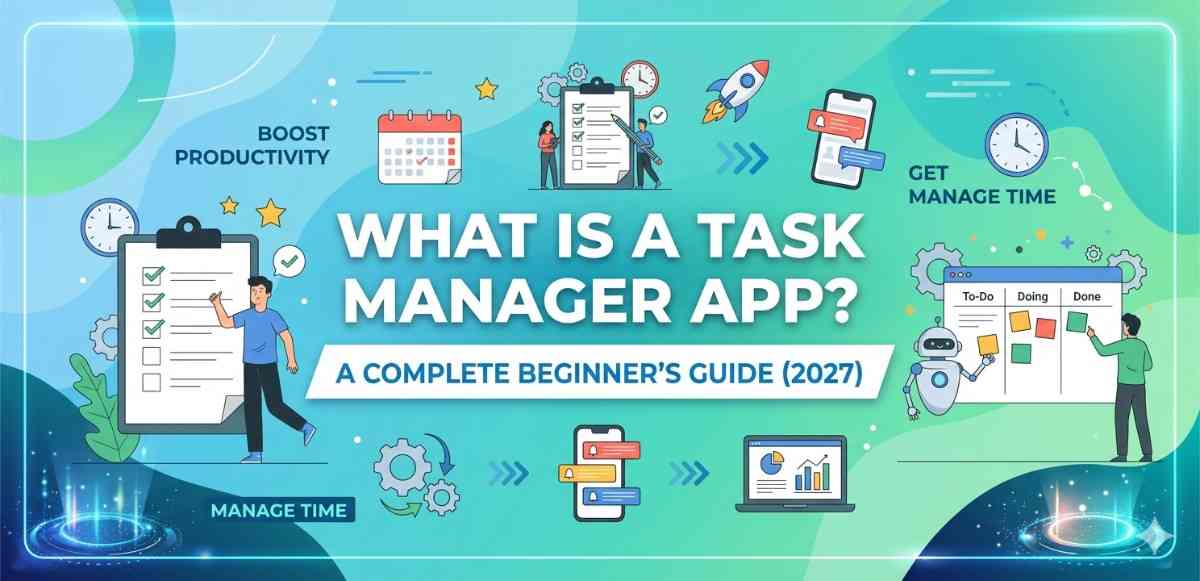
Introduction
If you’ve ever felt overwhelmed trying to remember everything you need to do in a day — work deadlines, grocery runs, calling the plumber — you’re not alone. Most of us carry a mental to-do list that’s too long and too messy. That’s exactly where a task manager app steps in.
This guide is written for people who are new to this concept. No jargon, no complicated theory. Just a plain, honest look at what these apps are, how they work on Android phones, and whether you actually need one.
a Task Manager App What Exactly Is a Task Manager App?
A task manager app is a tool that helps you organize, track, and complete your personal or work-related tasks in one place. Think of it as a smarter version of a sticky note — except it doesn’t fall off your fridge at 2 AM.
On Android phones, these apps usually come with features like due dates, reminders, priority labels, and sometimes even subtasks. You create a task, set a time, and the app notifies you. Simple as that.
Some people confuse task manager apps with calendar apps. They’re related, but different. A calendar shows when something happens. A task manager tracks what needs to get done — and whether it actually did.
a Task Manager App Why Do People Use Them?
Here’s a real situation. Imagine you’re a student using a Samsung Galaxy phone. You have three assignments due this week, a part-time shift on Thursday, and you promised to help a friend move on Saturday. Trying to hold all of that in your head while also studying? That’s a recipe for forgetting something.
A task manager app lets you dump all of that out of your brain and into your phone. Once it’s in the app, you stop worrying about forgetting it. Your mental energy goes toward doing things, not just trying to remember them.
That’s the core value here — it reduces mental load.
How Task Manager Apps Work on Android
Android makes it easy to use these apps because of how deeply integrated the notification system is. When you set a reminder in a task app, Android’s notification engine handles the alert. You don’t need to keep the app open.
Most Android task manager apps work like this:
Creating a Task
You open the app, tap a button (usually a “+” or a pencil icon), type what you need to do, and optionally add a due date or reminder. Done. The whole thing takes about 15 seconds.
Setting Priorities
Many apps let you mark tasks as high, medium, or low priority. This sounds minor, but when your list gets long, being able to see the urgent stuff at the top makes a real difference.
Organizing With Lists or Projects
Instead of one giant dump of tasks, most apps let you create separate lists. For example, you might have a “Work” list, a “Personal” list, and a “Shopping” list. Each section stays clean and separate.
Marking Tasks as Done
This part actually feels satisfying. You check off a task and it disappears or moves to a “completed” section. There’s a small psychological reward in that — it tells your brain “you did something today.”
Common Features You’ll Find in Most Task Manager Apps
Not every app has every feature, but here are the things that show up most often:
Recurring tasks — Need to take medicine every morning? Set it once, and the app creates that reminder every day automatically.
Subtasks — Big tasks can be broken down. “Plan trip to Shimla” becomes five smaller steps: book hotel, check train schedule, pack bag, etc.
Tags or labels — These help you filter tasks quickly. Tag everything related to work with a “work” label and you can see just those tasks with one tap.
Sync across devices — Most modern task apps sync through the cloud. Start a task on your phone, finish it on your tablet or laptop.
Widgets — Android supports home screen widgets. Many task apps offer a widget so you can see your to-do list without even opening the app.
Are Task Manager Apps Different From Productivity Apps?
This is a question beginners often ask. The short answer: task managers are a type of productivity app, but not all productivity apps are task managers.
A productivity app is a broad category. It includes note-taking apps, time trackers, habit trackers, and yes — task managers. If an app helps you get things done more efficiently, it qualifies as a productivity tool.
Task managers specifically focus on actionable items with clear completion states. Either a task is done or it isn’t. That’s the defining quality.
For deeper reading on how Android apps fit into your daily workflow, you might find it useful to explore how to manage app notifications on Android — because notifications and task reminders work closely together.
Built-In vs. Third-Party Task Apps on Android
Android phones come with Google Tasks pre-installed on most devices. It’s basic but functional. You can create tasks, set due dates, and see them inside Google Calendar.
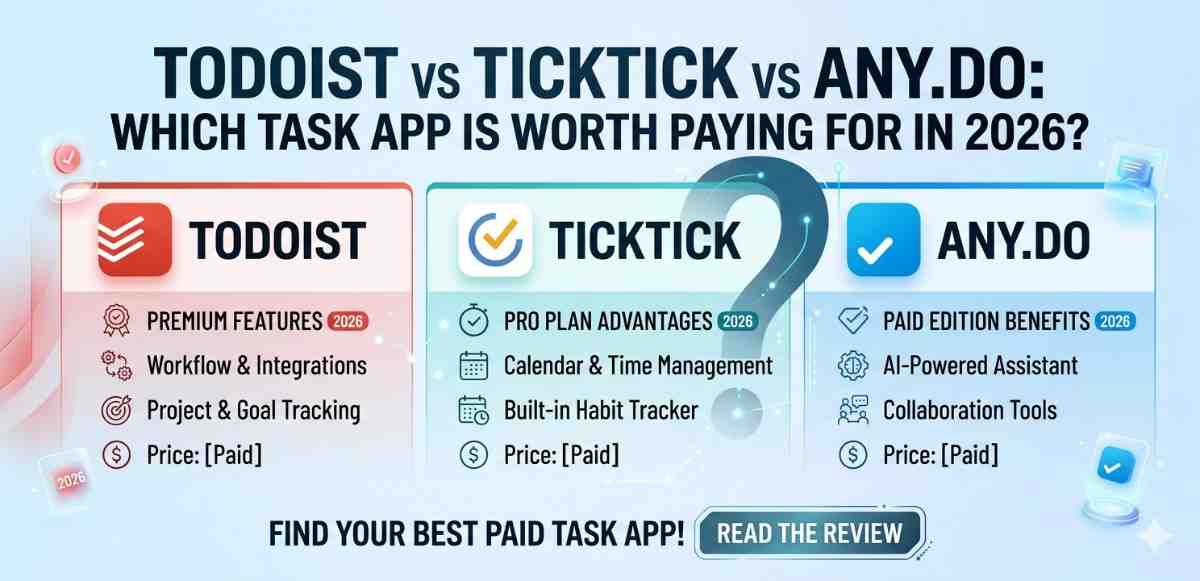
Then there are third-party options — apps you download from the Play Store. These usually offer more features, better design, and more flexibility. Popular ones as of 2027 include TickTick, Microsoft To Do, and Todoist. Each has a free version that works well for most beginners.
When Google Tasks Is Enough
If you just need a simple list with reminders and you’re already using Gmail and Google Calendar, Google Tasks fits right in. No setup hassle.
When a Third-Party App Makes Sense
If you’re managing work projects, collaborating with others, or want features like time estimates or Kanban boards, third-party apps are worth trying.
Task Manager Apps and Android’s Digital Wellbeing
Here’s something not many beginners think about — using a task manager can actually support healthier phone habits. When your tasks are organized, you spend less time opening random apps trying to remember what you were supposed to do.
Android has a built-in Digital Wellbeing feature that tracks your screen time. Interestingly, people who use task manager apps tend to be more intentional about when and why they pick up their phones.
That’s not a guaranteed outcome, but it’s a pattern worth noticing.
A Few Things Beginners Often Get Wrong
Overcomplicating the setup. Some people spend more time organizing their task app than actually doing tasks. Start simple. One list, basic reminders. You can add complexity later.
Not reviewing the list. An app filled with tasks you never check is just digital clutter. Build a small habit — look at your task list every morning. Two minutes, that’s all.
Setting too many reminders. If everything is marked urgent, nothing feels urgent. Be selective about what gets a priority flag.
Choosing the Right Task Manager App for You
Before downloading anything, ask yourself a few questions:
- Do I need this just for personal use, or for work too?
- Do I want something minimal or feature-rich?
- Am I using Android only, or across multiple devices?
If you want simplicity, Google Tasks or Microsoft To Do work well. If you want something more powerful, TickTick has a generous free tier with good Android integration.
You can also check Android’s official app discovery page on the Play Store to browse productivity apps filtered by rating and category — it’s a reliable way to find options without relying on random recommendations.
Final Conclusion
A task manager app is, at its core, a way to offload the mental weight of remembering things. For Android users, these apps blend into the phone’s notification system and home screen, making them genuinely useful rather than just another app to ignore.
Whether you’re a student, a working professional, or just someone trying to get through the week without forgetting to call your mom back — there’s a task manager out there that fits your life. Start with something simple, build the habit of checking it daily, and adjust from there.
The goal isn’t to have a perfect system. It’s to feel a little more in control of your day.