
 Prakash@gmail.com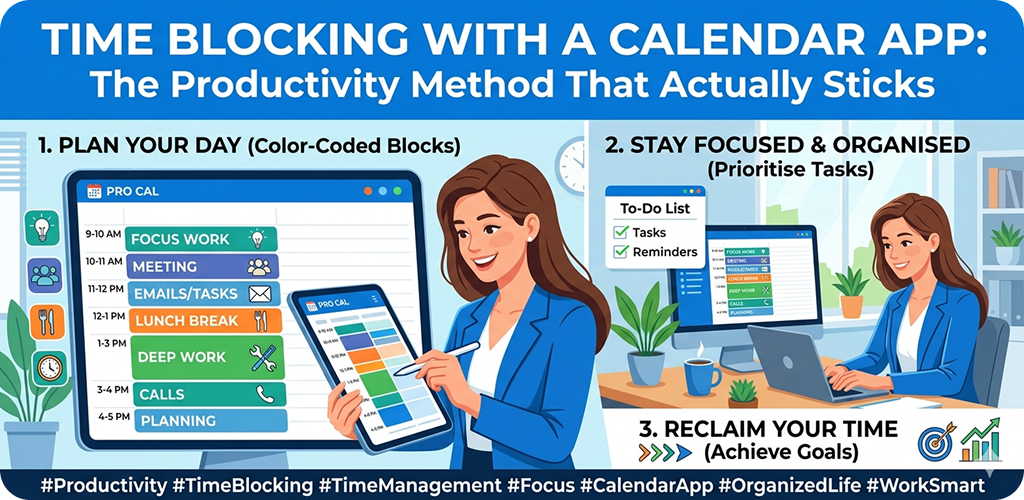
Introduction
With a Calendar App Most productivity advice sounds great in theory. Wake up early, write a to-do list, prioritize your tasks. But then real life happens — notifications, unexpected calls, that one coworker who always needs “just five minutes.” By noon, half your list is untouched.
Time blocking is different. Not because it’s magical, but because it works with how your phone and calendar already function. You’re not adding more tools. You’re using what you have, more deliberately.
With a Calendar App What Time Blocking Actually Means (In Plain Terms)
Time blocking means you assign specific chunks of time in your calendar for specific tasks. Instead of a floating to-do list that you “get to when you can,” each task has a home — a start time and an end time.
So instead of writing “reply to emails” somewhere on a sticky note, you open your calendar app and block 9:00–9:30 AM just for that. That’s it. No multitasking during that window. Just emails.
It sounds almost too simple. But the act of putting something on a calendar changes your relationship with it. Suddenly it’s a commitment, not just an intention.
With a Calendar App Why To-Do Lists Alone Keep Failing You
There’s nothing wrong with writing tasks down. The problem is a list has no sense of time. Ten items on a list feel the same whether you have two hours or ten hours available.
Your brain sees “write report, buy groceries, call the bank, prepare slides” and doesn’t naturally know what fits where. So you pick the easiest ones first, feel productive for a while, and then realize the important stuff still isn’t done.
A calendar app fixes this because it forces you to ask: when exactly will this happen? That one question reveals a lot. It shows you when your day is already full. It helps you stop overcommitting. And it makes you realistic about what’s actually possible today.
With a Calendar App Choosing the Right Calendar App for Time Blocking
You don’t need a fancy app. The Google Calendar app on Android works perfectly well. So does Samsung Calendar, which comes pre-installed on most Samsung phones. If you’re already using an app, that’s probably fine.
Google Calendar (Best for Most Android Users)
Google Calendar lets you create events quickly, color-code them, set reminders, and view your week at a glance. The weekly view is especially useful for time blocking because you can see all your blocks laid out like a visual schedule.
You can create an event, name it “Deep Work — Project Draft,” set it for 10:00–12:00 PM, choose a color, and you’re done. It syncs across devices automatically.
Samsung Calendar (Built-In and Underrated)
If you use a Samsung phone, the built-in calendar is actually quite good for this. It has a clean interface, integrates with your Samsung account, and lets you set task-style events easily. Many people overlook it because it came free with the phone, but it handles time blocking well for daily use.
Other Options Worth Knowing
Apps like Fantastical or Any.do Calendar have slightly more refined interfaces, but for a beginner, the extra features can feel overwhelming. Start with what’s already on your phone. You can always upgrade later once the habit is formed.
With a Calendar App How to Set Up Your First Time-Blocked Day
Let’s walk through this practically, using an Android phone.
Step 1: Open Your Calendar App the Night Before
Don’t plan your day in the morning when you’re already in reaction mode. The night before, open your calendar app and look at what tomorrow holds — any fixed appointments, meetings, or classes.
Step 2: Identify Your Top Three Priorities
Not ten tasks. Three. These are the things that actually need to get done. Write them down somewhere briefly, even in a notes app.
Step 3: Assign Each Priority a Time Block
Now go back to your calendar and create events for each one. Give each task a realistic amount of time. If you tend to underestimate, add 20% more. So if you think writing that email will take 20 minutes, block 25.
Tap the time slot on your calendar, name the event (be specific — “Draft client proposal” is better than “Work”), and save it.
Step 4: Add Buffer Blocks
This part most people skip. Between major blocks, add a 10–15 minute buffer. Just name it “Buffer” or “Transition.” This is where you respond to unexpected messages, grab water, or just breathe. Without buffers, one overrun block ruins your entire schedule.
Step 5: Block Personal Time Too
Your lunch, your evening walk, time with family — put it all in. Time blocking isn’t just for work tasks. Scheduling personal time makes sure it doesn’t get eaten up by work creeping in.
With a Calendar App Common Mistakes People Make When Starting Out
Over-Scheduling From Day One
New time blockers often try to account for every minute. That’s exhausting and unsustainable. Start by blocking just your two or three most important activities. Leave the rest unstructured at first.
Making Blocks Too Short
If you block 15 minutes for something that genuinely needs 45, you’ll either rush it or overrun the next block. Be honest with yourself about how long things take. Track it for a week if needed.
Ignoring Your Energy Levels
Your brain doesn’t work the same at 8 AM as it does at 3 PM. Some people are sharp in the mornings; others hit their stride after lunch. Schedule your hardest, most creative work during your high-energy window, not your low one.
This is something you figure out through experience. Pay attention to when you feel focused versus sluggish. Then arrange your blocks accordingly.
Making the Habit Stick Over Time
The first week of time blocking often feels uncomfortable. You’re used to flowing through the day reactively, and now you’re committing to a structure. That’s normal.
The key is reviewing your schedule at the end of each day. Just two minutes. Look at what you completed, what got pushed, and why. Over time, you’ll get better at estimating time, spotting patterns, and protecting your blocks.
One thing that genuinely helps: treat your calendar blocks like meetings with yourself. You wouldn’t cancel a meeting with your manager at the last minute without a reason. Give your own blocks the same respect.
Also, use your phone’s notification feature. Set a reminder 5 minutes before each block starts. On Android, Google Calendar lets you customize this easily. That little nudge helps you wrap up whatever you’re doing and transition into the next block.
When Life Disrupts Your Schedule (And It Will)
Time blocking doesn’t mean your day is rigid. Things come up — always. The point isn’t to follow the plan perfectly; it’s to have a plan you can return to.
When something unexpected happens and pushes a block off course, just reschedule it. Drag it to a later time in your calendar app, or move it to tomorrow. The act of rescheduling is itself productive — you’re making a conscious decision, not just letting the task disappear.
This is why digital calendar apps beat paper planners for time blocking. Moving, resizing, and adjusting blocks takes seconds on a phone.
Final Conclusion
Time blocking with a calendar app isn’t about being obsessively organized. It’s about making intentional choices with your time before the day makes those choices for you.
Start small. Block your two most important tasks tomorrow. Use whatever calendar app is already on your Android phone. Add a buffer between blocks. Review at the end of the day.
It won’t be perfect at first. That’s fine. The method earns its value not in one perfect day, but in the slow accumulation of days where you finish what actually matters. That’s what makes it the kind of productivity habit that genuinely sticks.

Yes